
A fake delivery message arrives when you are waiting for a package. A caller says there is suspicious activity on your bank account. A pop-up warns that your computer is infected and asks you to call a number right away. These situations can feel urgent, and that is exactly why they work. Online safety is not about becoming a technology expert. It is about slowing down long enough to recognize when something does not feel right.
For most households, a few sensible habits prevent the majority of problems. The goal is not to live in fear of every email, text, or website. It is to use your devices with confidence while keeping your money, personal information, photos, and accounts protected.
Online Safety Starts With a Pause
Scammers often rely on urgency. They want you to click before you think, share a code before you question it, or pay before you verify the request. Messages may claim that an account will be closed today, a loved one is in trouble, or a refund is waiting for you.
A legitimate organization may contact you by email or text, but it will not usually pressure you to act immediately, demand payment by gift card or cryptocurrency, or ask for your password or one-time security code. If a message feels alarming, do not use the link or phone number inside it. Open the company’s official app, type its website address yourself, or call the number on the back of your card.
This one habit - pause, then verify independently - is among the most useful forms of protection available.
Keep Passwords Strong Without Making Life Harder
Passwords are the keys to much of your digital life. Reusing the same password for email, shopping, banking, and social media may seem convenient, but it creates a serious problem. If one website has a data breach, criminals may try that password on other accounts.
Use a different, long password for every important account. A memorable passphrase can work well, such as several unrelated words combined with numbers or punctuation. Avoid names, birthdays, addresses, and anything a person could find on social media.
Remembering dozens of unique passwords is not realistic for most people. That is where a password manager can help. It stores passwords securely and can create strong ones for you. It also helps you avoid typing passwords into look-alike websites, because it recognizes the real site connected to each saved login.
Turn on two-factor authentication wherever it is offered, especially for email, financial accounts, cloud storage, and social media. This adds a second check after your password, usually a confirmation in an app, a text message, or a security key. An authentication app is generally safer than text messages, but text-based verification is still much better than relying on a password alone.
Never share a verification code with anyone. Even if a caller says they work for your bank, email provider, or technical support company, that code is meant only for you.
Protect Email First
Your email account deserves extra attention because it is often used to reset passwords for other services. If someone gets into your email, they may be able to take over shopping, social media, cloud storage, or financial accounts as well.
Make sure your email password is unique and two-factor authentication is enabled. Review the recovery phone number and backup email address occasionally to make sure they are still yours. If you receive unexpected password reset emails, do not ignore them. They may mean someone is trying to access your account.
It is also wise to be careful with emails that appear to come from friends or family. A familiar name does not guarantee that the message is genuine. If an email asks for money, gift cards, or help with an urgent situation, call or message that person using a number you already know. Do not reply directly to the suspicious email.
Updates Are a Safety Feature, Not an Annoyance
Software updates can be inconvenient when you are busy, but they often fix security weaknesses that criminals know how to exploit. This applies to computers, phones, tablets, internet routers, smart TVs, and even some printers.
Set your computer and phone to install updates automatically when possible. When a device asks to restart for an update, choose a time that works for you and complete it soon. Waiting for weeks or months leaves the door open longer than necessary.
Security software is useful, particularly on computers, but it is not a substitute for careful habits. Keep it updated, let it run scheduled scans, and pay attention if it reports a real concern. At the same time, be wary of browser pop-ups claiming your device is infected. Those pop-ups are often the scam itself.
Be Careful With Calls, Texts, and Remote Access
Phone and text scams have become very convincing. Caller ID can be faked, and a text can appear in the same conversation thread as a real business message. Do not assume a message is genuine simply because it looks polished or includes a company logo.
Be especially cautious when someone contacts you unexpectedly and asks to access your computer or phone. Real companies do not normally call out of the blue to report a virus, a hacked account, or a problem with your internet connection. A stranger who gains remote access can view files, install software, watch what you type, or change settings.
If you need technical help, contact a provider you chose yourself. A trusted local professional, such as Eric the Tech, should explain what they are doing in plain language and never pressure you to act before you are comfortable.
Here are warning signs that deserve a second look:
- A request for payment by gift card, wire transfer, cryptocurrency, or a payment app to a person you do not know.
- A demand for your password, one-time security code, or banking details.
- A threat that you will be arrested, disconnected, or charged unless you act immediately.
- A message with an unexpected attachment, especially one you were not expecting from the sender.
- A request to install remote-access software after an unsolicited call, email, or pop-up.
One sign alone may not prove a scam, but several together are a strong reason to stop and verify.
Protect Your Home Wi-Fi and Devices
Your home Wi-Fi network connects more than computers. Phones, tablets, smart speakers, cameras, TVs, printers, and other devices may all use it. Start by changing the router’s default administrator password if it has never been changed. Use a strong Wi-Fi password and choose modern security settings, usually WPA2 or WPA3, if your router supports them.
Avoid sharing your main Wi-Fi password widely. If your router has a guest network, use it for visitors and for smart devices that do not need access to your personal computers. This is not necessary in every home, but it can offer an extra layer of separation.
When using public Wi-Fi at a café, airport, or hotel, avoid banking or entering sensitive information unless you are confident the connection is legitimate. Your phone’s cellular connection may be a better choice for private tasks. Also turn off automatic connection to unknown Wi-Fi networks, which can prevent your device from joining a look-alike network without you noticing.
Backups Give You a Way Back
Online safety includes preparing for mistakes and surprises. A lost phone, failed hard drive, ransomware attack, or accidental deletion should not mean losing years of family photos and important documents.
Keep copies of important files in more than one place. Many households use a combination of cloud storage and an external hard drive. Cloud storage is convenient and can protect files when a device fails or is stolen. An external drive gives you another copy that you control. The best choice depends on how much storage you need, how comfortable you are with cloud services, and how often files change.
Backups only help if they are working. Once in a while, open a few saved photos or documents and make sure you can find them. It is a small check that brings real peace of mind.
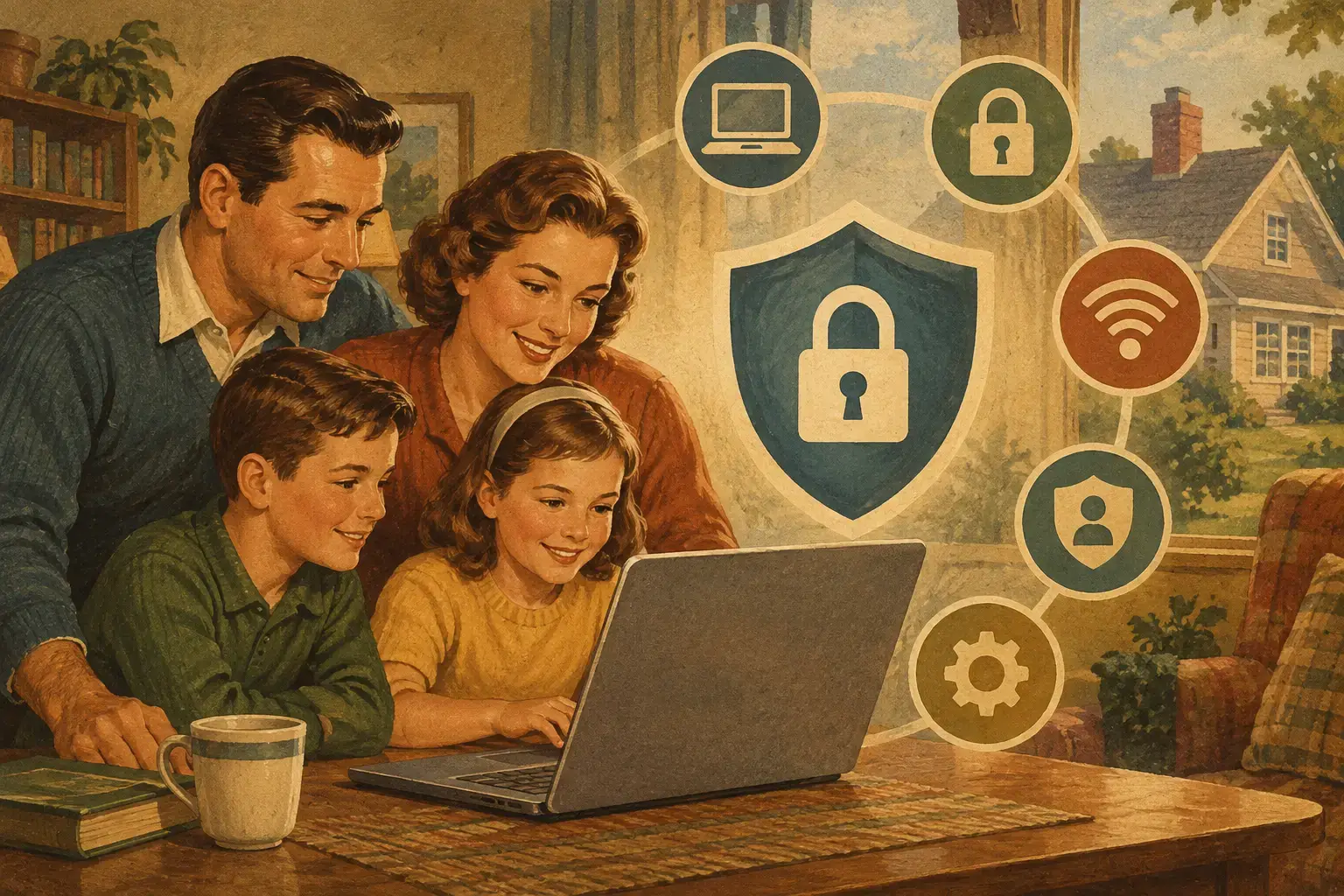
Make Safety a Family Conversation
Children, teenagers, adults, and older relatives face different risks, but everyone benefits from talking openly about suspicious messages. A family member should feel comfortable saying, “I clicked something and I am worried,” without embarrassment. Quick action can often limit the damage.
Agree on a simple plan. If anyone receives a strange message, sees an alarming pop-up, or thinks an account may be compromised, they should stop entering information, take a screenshot if possible, and ask for help. For a suspected account takeover, change the password from a trusted device, sign out of other sessions if the service allows it, and contact the company through its official support channel.
No question is silly when money, private information, or treasured photos may be involved. The safest technology habits are usually not complicated. They are the calm ones: use strong passwords, keep devices updated, back up what matters, and pause before responding to pressure. If something feels off, trust that feeling and give yourself permission to ask for a second opinion.