
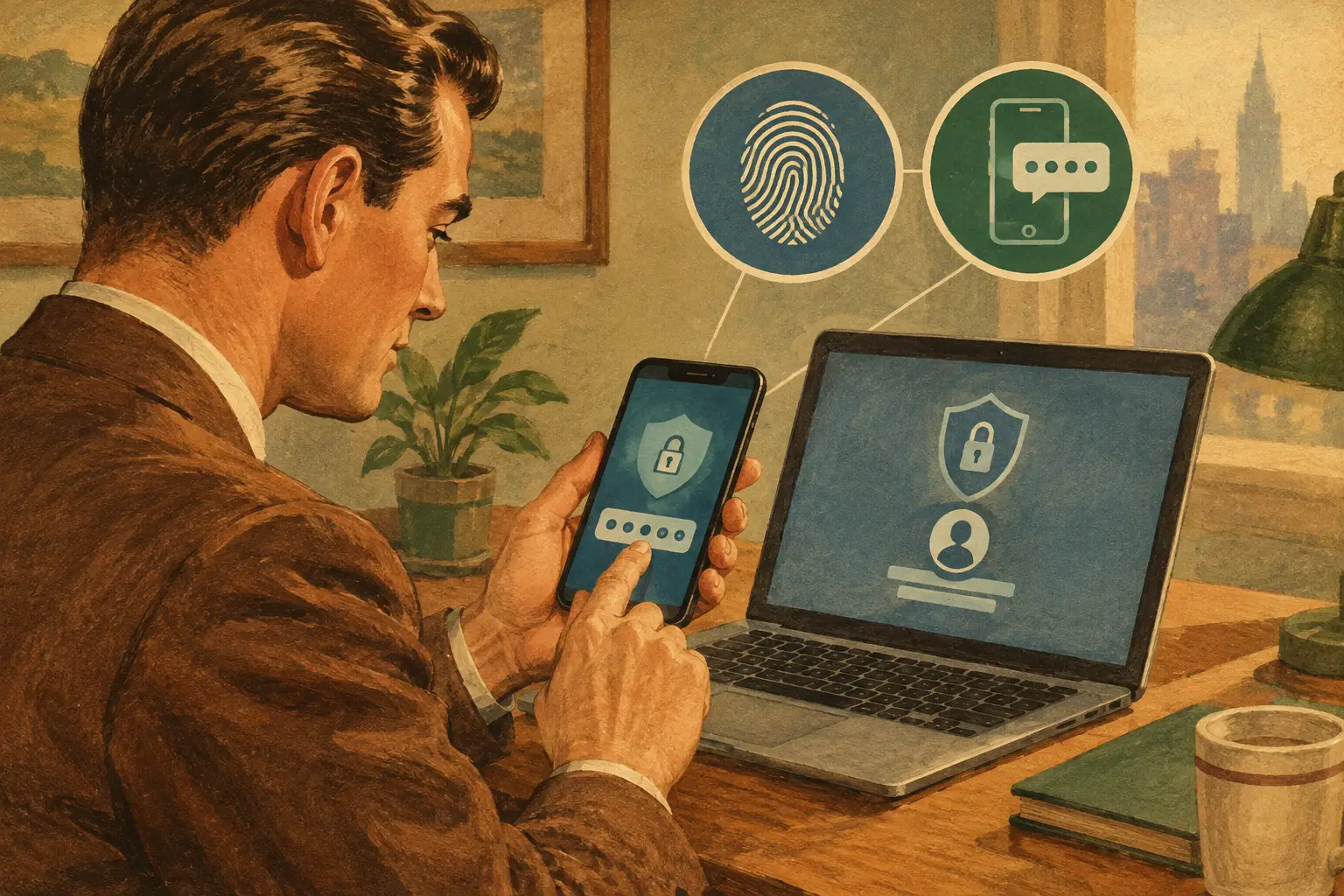
A stolen password can create a very stressful day. Someone may try to access your email, bank, social media, or shopping accounts without you knowing. When you enable two factor authentication, you add a second check that makes a password alone far less useful to a criminal.
This extra step might be a code from an app, an approval prompt on your phone, or a physical security key. It can feel like one more thing to manage at first, but once it is set up properly, it usually takes only a few seconds when you sign in on a new device. More importantly, it gives you a chance to stop an unauthorized login before it becomes a bigger problem.
What two-factor authentication actually does
Two-factor authentication, often called 2FA, asks for two different kinds of proof that you are really you. The first is usually something you know, such as your password. The second is something you have, such as your phone, an authenticator app, or a security key.
Think of it like your front door. A password is the key. Two-factor authentication is the extra deadbolt that requires a separate action before anyone can get in. If a scammer gets your password through a fake email, a data breach, or password guessing, they still should not be able to sign in without that second factor.
It does not make an account completely invincible. For example, a scammer may still try to trick you into sharing a code. But it is one of the most practical protections available for everyday accounts, especially when paired with a strong, unique password.
Which accounts should get 2FA first?
If setting up security on every account feels overwhelming, start with the accounts that could cause the most trouble if someone got in. Your email account belongs at the top of the list. Email is often used to reset passwords for other services, so access to your inbox can lead to access elsewhere.
Next, protect banking and investment accounts, your Apple Account or Google Account, password manager, social media accounts, online shopping accounts with saved payment details, and work accounts. If you use cloud photo storage, turn on 2FA there too. Family photos may be precious, and an account takeover can be upsetting even when no money is involved.
Do not forget accounts that control your home. Smart cameras, video doorbells, Wi-Fi routers, and smart-home hubs may have their own security settings. The options vary by product, but it is worth checking.
How to enable two factor authentication without confusion
The names vary from one service to another. Look in the account’s Settings area for words such as Security, Sign-in and Security, Login and Security, Account Protection, or Two-Step Verification.
Once you find the option, the service will usually ask you to confirm your password and select a second-factor method. Take your time. Read each screen before pressing Continue, especially if you are being asked to remove an existing method or change your recovery information.
An authenticator app is often a good choice. These apps generate short, changing codes on your phone, even when you do not have cell service. During setup, the website may show a square QR code. Open the authenticator app, choose the option to add an account, scan the code, and enter the code it gives you back on the website.
Some services instead send a sign-in prompt to a device you already use. You may see a message asking whether you are trying to sign in and showing a location or number. Approve it only when you are actively signing in yourself. If an unexpected prompt appears, reject it and change your password.
Text-message codes are better than having no second factor, and they can be the simplest choice for some people. However, they are not always the best option. Phone numbers can be targeted through SIM-swap fraud, and messages may be delayed when you are traveling or have poor reception. If an authenticator app or security key is available, consider using one of those as your primary method and keep text messages only as a backup when appropriate.
Save recovery codes before you need them
Recovery codes are one-time backup codes provided by many services during 2FA setup. They can get you back into your account if your phone is lost, broken, replaced, or unavailable. They are easy to skip because you may never need them. That is exactly why they matter.
Save the codes somewhere private that you can reach without the same phone. A reputable password manager can store them securely. You might also print them and keep the paper in a safe place at home. Do not leave recovery codes in an unlocked notes app, on a sticky note beside your computer, or in an email message that someone could access if your email account is compromised.
If the service offers several backup methods, set up at least two. For example, you could use an authenticator app as your everyday option and save recovery codes for emergencies. A second trusted device may also help, but only if it is one you control and keep protected with a screen lock.
Avoid the most common lockout mistakes
The goal is better security, not getting locked out of your own digital life. A little planning prevents most problems.
Before replacing or wiping an old phone, make sure your authenticator accounts will move to the new phone. Some authenticator apps have a transfer feature, while others require you to sign in to each account and add the new device one at a time. Do this while both phones are still available. Once the old phone is erased or traded in, the job can become much harder.
Keep your account recovery email address and phone number current. If you no longer have access to an old email address or phone number, update it now. It is much easier to make that change when you can still sign in normally.
Also, be careful when sharing access with a spouse, family member, employee, or assistant. Do not simply hand over your recovery codes or your password. Many services allow separate user accounts, family sharing, or delegated access. Those choices are usually safer and easier to manage if circumstances change.
Never share a verification code with a caller or texter
A legitimate company may ask you to enter a code into its own website or app while you are signing in. It should not call unexpectedly and ask you to read the code aloud. It should not text you demanding that you reply with a code to “secure” your account.
Scammers often create urgency. They may claim there has been suspicious activity, say your account will be closed, or pretend to be a bank, delivery company, government office, or technical support team. Their real goal may be to get the code that was just sent to you.
Treat verification codes like a house key. Do not give them to anyone who contacts you unexpectedly, even if the person sounds convincing. Hang up, close the message, and contact the company through the official app or phone number you already trust. If you accidentally share a code, change your password immediately and review the account’s signed-in devices and recovery settings.
Pair 2FA with good password habits
Two-factor authentication works best alongside unique passwords. Reusing the same password for several accounts creates a chain reaction: if one website has a breach, criminals may try that password on email, banking, and other popular services.
A password manager can create long, unique passwords and remember them for you. That means you do not have to keep a notebook full of difficult passwords or rely on memorable details such as a pet’s name and birth year. Choose a strong password for the password manager itself, enable 2FA on it, and make sure its recovery process is understood before you need it.
It is also wise to review the devices signed in to your most important accounts every few months. Remove old phones, unfamiliar computers, and devices you no longer own. This is a small bit of housekeeping that can reveal an issue early.
When it makes sense to ask for help
There is no prize for struggling through account security alone. If the setup screens are confusing, you have changed phones, or you are worried about losing access, patient help can make the process much less stressful. A technician can help you set up an authenticator app, save recovery codes safely, check account recovery details, and explain what each choice means without rushing you.
For families and small businesses, it can also help to make a simple plan for who manages accounts, where recovery information is kept, and what to do if a phone is lost. The right setup depends on how you use technology and who needs access.
Start with your email account today, while you have time and control. A few careful minutes now can spare you from a much harder problem later.