
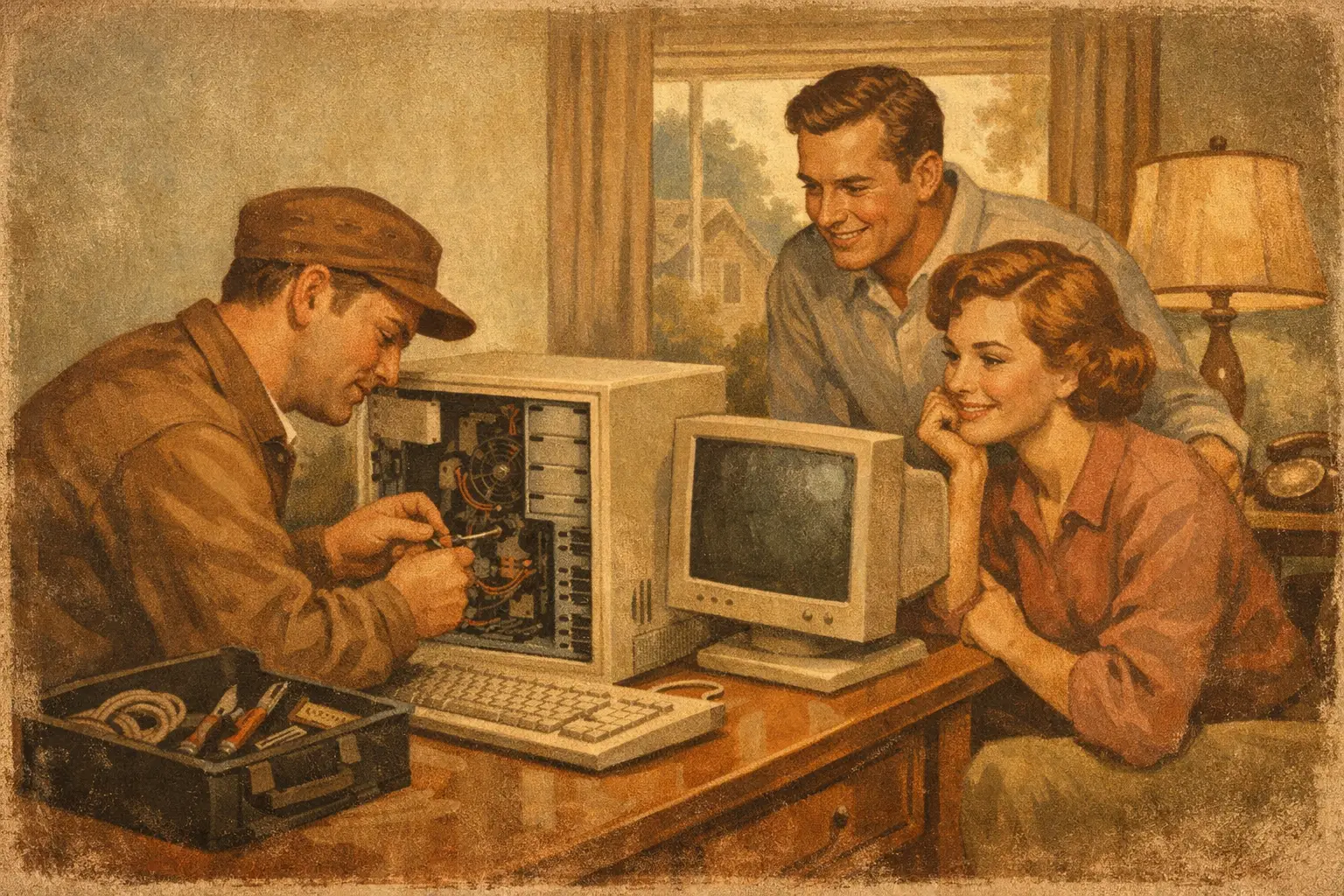
A computer problem rarely arrives at a convenient time. It shows up when you need to print a school form, join a video call, find an old photo, pay a bill, or finish work. In home computer repair brings the help to you, so you do not have to unplug everything, carry a heavy desktop to a store, or try to explain a frustrating problem from memory.
For many households, the biggest benefit is not just getting the computer working again. It is having someone calmly look at the full setup, explain what happened in plain language, and help you feel more comfortable the next time something looks unfamiliar. No question is silly, and a good repair visit should leave you with more confidence than you had before.
When in-home computer repair is the better choice
A repair shop can be useful for certain hardware jobs, especially when a computer needs a replacement screen, major internal work, or a part that must be ordered. But many everyday issues make more sense to solve where the computer is actually used.
A printer that will not print may not be a printer problem at all. It could be connected to the wrong Wi-Fi network, have an outdated driver, or be waiting for a message on its small display. A computer that feels slow may have too many programs starting automatically, a nearly full hard drive, unwanted browser extensions, or an old update that did not install correctly. Looking at the device in your home makes it easier to see the whole picture.
In-home help is especially useful when several devices are involved. Your laptop, phone, printer, router, smart TV, and tablet often share the same home network. Fixing only one device can leave the real issue behind.
Problems that benefit from help at home
A patient technician can handle a wide range of common computer problems while showing you what is being done. That might mean a computer tune-up to clear out unnecessary clutter and improve startup speed, or malware removal when pop-ups, suspicious alerts, or unfamiliar programs have appeared.
It can also mean getting a new computer set up properly from the start. Files can be moved from the old device, email can be connected, security settings can be checked, and the printer can be added before it becomes an urgent problem. If you have been avoiding a new laptop because the setup feels overwhelming, having support nearby can make the change far less stressful.
Home visits are also helpful for Wi-Fi trouble. A weak signal in one room, dropped video calls, or a smart TV that refuses to connect can be caused by placement, settings, interference, or aging equipment. The best answer depends on how your home is laid out and where you use your devices, not just what a speed test says in one spot.
Repair is only part of the job
A computer can be technically fixed and still leave its owner feeling stuck. If you do not know why the problem happened or what to do when a similar message appears, the worry comes right back.
That is why coaching matters. During an appointment, you can ask how to organize photos, make folders easier to find, use cloud storage safely, or recognize the difference between a real security notice and a scam. You can also learn how to use video calls, attach a document to an email, or make text on the screen easier to read.
The right pace is your pace. Some people want a quick explanation and prefer to get back to their day. Others want to take notes and practice each step themselves. Both approaches are completely reasonable. Technology help should fit the person using the technology.
Protect your files before a small problem becomes a big one
Many people call for repair after a computer stops turning on, files disappear, or a suspicious message asks for money. Those situations can be serious, but preventive help is often less stressful and less expensive than recovering from a crisis.
A safe backup plan is one of the most useful things you can set up at home. The best option depends on what you need to protect. Important family photos, financial documents, work files, and email contacts may need different backup methods. Some people prefer an external drive they can keep nearby, while others want cloud storage that can be accessed from multiple devices. Often, a combination offers the most peace of mind.
Passwords deserve the same attention. Reusing one password across important accounts creates unnecessary risk, but trying to remember dozens of complicated passwords is frustrating. A password manager can help, provided it is set up carefully and you understand how to access it. A technician can explain the choices without rushing you into a system that does not suit your needs.
Be careful with pop-ups and urgent calls
Not every alert on a computer is dangerous, but urgent language is a warning sign. Messages claiming that your computer is infected, that your account will be closed immediately, or that you must call a number right away are often designed to create panic.
A legitimate company will not normally call unexpectedly and demand remote access to your computer. Nor should you share a one-time verification code, banking information, or passwords with someone who contacted you out of the blue. If you are unsure, pause. Take a photo of the message if you can, close the browser if it is safe to do so, and ask for help before clicking anything else.
Part of good in-home computer repair is checking for signs of unwanted software and helping you build safer habits without making you feel blamed. Scams are built to fool busy, thoughtful people. A calm second opinion is valuable.
What a helpful appointment should feel like
You should not feel talked down to, pressured into buying equipment, or embarrassed because you do not know a technical term. A good visit starts by listening to what is not working and how it is affecting your day.
From there, the technician should explain the likely cause in ordinary language, discuss the practical options, and be honest about trade-offs. Sometimes a tune-up will give an older computer another useful year or two. Other times, the cost of repair does not make sense compared with replacing an unreliable device. Clear advice helps you make the decision, rather than pushing you toward the most expensive one.
At Eric the Tech, the goal is friendly help for home technology: get your tech working, understand the fix, and know what to do next. That can include repair, setup, security support, or simply a patient lesson on a feature you want to use.
How to prepare for a home visit
You do not need to clean up your computer or learn technical vocabulary before asking for help. It does help to write down a few details: when the problem started, what you see on the screen, and what you were trying to do when it happened. If you have error messages, take a photo with your phone.
Keep any passwords or account recovery information available, but do not write passwords down for someone else to keep. You may need to enter them yourself during setup. If possible, gather charging cables, printer information, and any external drives you use for backups.
Most importantly, think about the outcome you want. Do you need a faster computer, a working printer, safer photo storage, or confidence using a new laptop? Starting with that goal helps make the appointment useful from the first few minutes.
Technology works best when it supports your life without demanding all your attention. A little patient help at home can turn a stubborn computer problem into a chance to make your entire setup easier, safer, and less intimidating.