
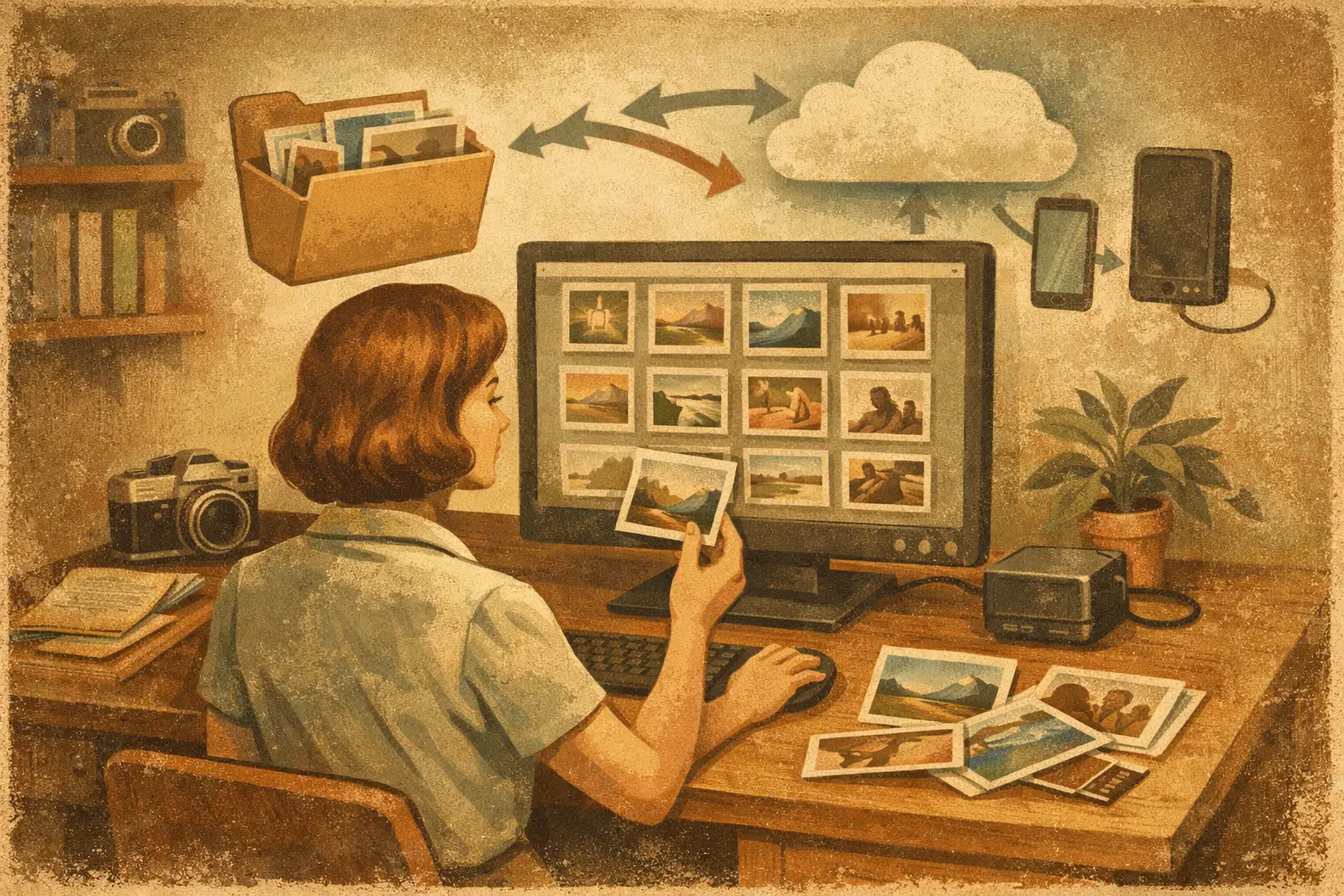
A phone full of 18,000 pictures can feel less like a photo album and more like a junk drawer. The good news is that learning how to organize digital photos does not mean spending every weekend sorting tiny thumbnails. A simple system can protect your favorite memories, clear away clutter, and make it easy to find the picture you actually want.
The best system is not the most complicated one. It is the one you will keep using. Start small, make a few clear decisions, and let your phone or computer do some of the work.
Start by protecting the photos you cannot replace
Before deleting duplicates or making folders, make sure your photos exist in more than one place. Phones can be lost, computers can fail, and a cloud account can be accidentally signed out or set up incorrectly. A backup is your safety net.
For most households, a good approach is to keep photos on the device you use every day, have them automatically copied to a cloud photo service, and maintain an additional copy on an external hard drive. You do not need to manage all three places every day. The point is that a single mistake or broken device should not erase years of family memories.
Cloud storage is convenient because it can back up new photos automatically and let you view them from a phone, tablet, or computer. However, it depends on having enough storage space and knowing the correct account password. An external drive gives you an extra copy that you control, but it needs to be connected and backed up from time to time. For many people, using both is the most comfortable choice.
If you are unsure whether your photos are backing up, check before you clean anything out. Look for a backup status message in your photo app and make sure it says the process is complete. Also confirm that you can see a few recent pictures from another device or browser.
Choose one main home for your photo library
A common source of confusion is having some pictures in a phone app, others in a Downloads folder, more on an old laptop, and a few thousand on a memory card. You do not have to fix every old photo collection in one day, but choose where new photos will live going forward.
For many people, the main home will be a cloud photo library connected to their phone. Others prefer a computer-based library with regular backups. Either can work well. What matters is avoiding a system where new photos are scattered across several apps and folders without a plan.
If family members use different devices, agree on how shared pictures will be handled. For example, one person may take photos on an iPhone while another uses Android. A shared album can be useful for vacations, grandchildren, holidays, or home projects. It keeps those pictures together without forcing everyone to combine their entire personal library.
Create a simple folder or album structure
You do not need a folder for every dinner, every errand, or every Tuesday afternoon. Too many categories can make photo organizing harder, not easier. Think in broad groups that match the way you naturally look for pictures.
On a computer, a practical folder structure might begin with a year, then use folders for meaningful events or subjects. For example: `2026 > Family > Summer Vacation` or `2026 > Home > Kitchen Renovation.`
In a photo app, albums are usually more helpful than folders. Create albums for the occasions and people you return to often, such as Family, Pets, Travel, Birthdays, School, or Home Documents. Most photo apps allow the same picture to appear in more than one album, so adding a vacation photo to both “Travel” and “Family” does not usually create a second copy.
Keep an album called Favorites for the photos that truly matter. These may be the images you want to print, share, put in a digital frame, or keep close at hand. Marking favorites as you go is much easier than trying to identify your best pictures five years later.
Sort new photos a little at a time
The easiest way to organize digital photos is to make it part of your regular routine. After a trip, birthday, holiday, or school event, spend 10 or 15 minutes reviewing the new pictures while you still remember what happened.
Delete the clearly unwanted shots first: blurry images, accidental pocket photos, repeated pictures, and screenshots you no longer need. Then add the best photos to one or two albums. You do not need to edit every image or write a description for each one.
If you have a large backlog, avoid starting with the oldest photo you own. Begin with the current month and keep new pictures organized from now on. Once that feels settled, work backward in short sessions. A box of old family photos is a meaningful project, but it should not prevent you from getting today’s pictures under control.
Be careful with screenshots and messaging apps
Screenshots are useful reminders, but they can take over a photo library quickly. Most do not need to be saved forever. Review them regularly and remove expired coupons, shipping updates, recipe screenshots you no longer use, and temporary instructions.
Photos received through text messages, email, and social media can also end up in several places. If someone sends a picture you want to keep, save it to your main photo library and add it to the right album. Do not assume it will always remain easy to find inside a long message conversation.
For important records, such as insurance information, receipts, medical paperwork, or legal documents, consider keeping them in a secure document folder rather than mixed in with family photos. A picture of a receipt may be useful, but it should be easy to find when you need it.
Use search instead of trying to label everything
Modern photo apps can often search by date, location, object, and sometimes by people or pets. Try searching for “beach,” “birthday,” “dog,” or the name of a city. This feature can save a great deal of time, especially when you need one photo quickly.
Search works best when your photo dates are correct. If you are scanning printed photos or importing pictures from an older camera, take a moment to set an approximate date. Even the correct year can make a big difference later.
Face recognition can be helpful for finding photos of family members, but it is a personal preference. If your photo service offers it, review the names it suggests and correct obvious mistakes. There is no need to label every person you have ever photographed.
Handle duplicates without losing something important
Duplicate photos are frustrating, especially after moving pictures between phones and computers. Some photo apps can identify exact duplicates and offer to merge them. This can be useful, but slow down before accepting a large cleanup all at once.
Two pictures may look nearly identical but have different quality, edits, or dates. Keep the sharper image, the better expression, or the version with the full original file. When in doubt, move possible duplicates into a temporary album or folder for a few weeks before deleting them permanently.
The same caution applies to old photo folders. Do not delete a folder just because its pictures appear to be in the cloud. Open a few files, compare dates, and make sure the cloud backup is complete first.
Make photo sharing easier for your family
Organizing photos is not only about storage. It is about being able to enjoy them. Once you have a few albums in place, sharing becomes much simpler. You can send an album after a family gathering, choose favorites for a printed book, or show a grandchild pictures from years ago without scrolling through thousands of unrelated images.
It also helps to talk with family about who is keeping important shared memories. If one person has all the photos from a reunion or a loved one’s phone, make sure others can receive copies. Memories are safer when they are not held by only one device or one account.
Ask for help if the collection feels overwhelming
Sometimes the hardest part is not the organizing itself. It is figuring out which device has the originals, whether cloud backup is really working, or how to bring years of photos together without making a mess. No question is silly, and you do not have to hand your private photos over to a stranger and hope for the best.
Eric the Tech can provide patient, one-on-one help with photo backup, phone and computer setup, cloud storage, and a system you feel comfortable maintaining. A calm session can turn a confusing collection into something you can actually use.
Your photo library does not need to be perfect to be valuable. Protect the memories, keep the newest pictures manageable, and give yourself a simple way to find the people and moments that matter most.