
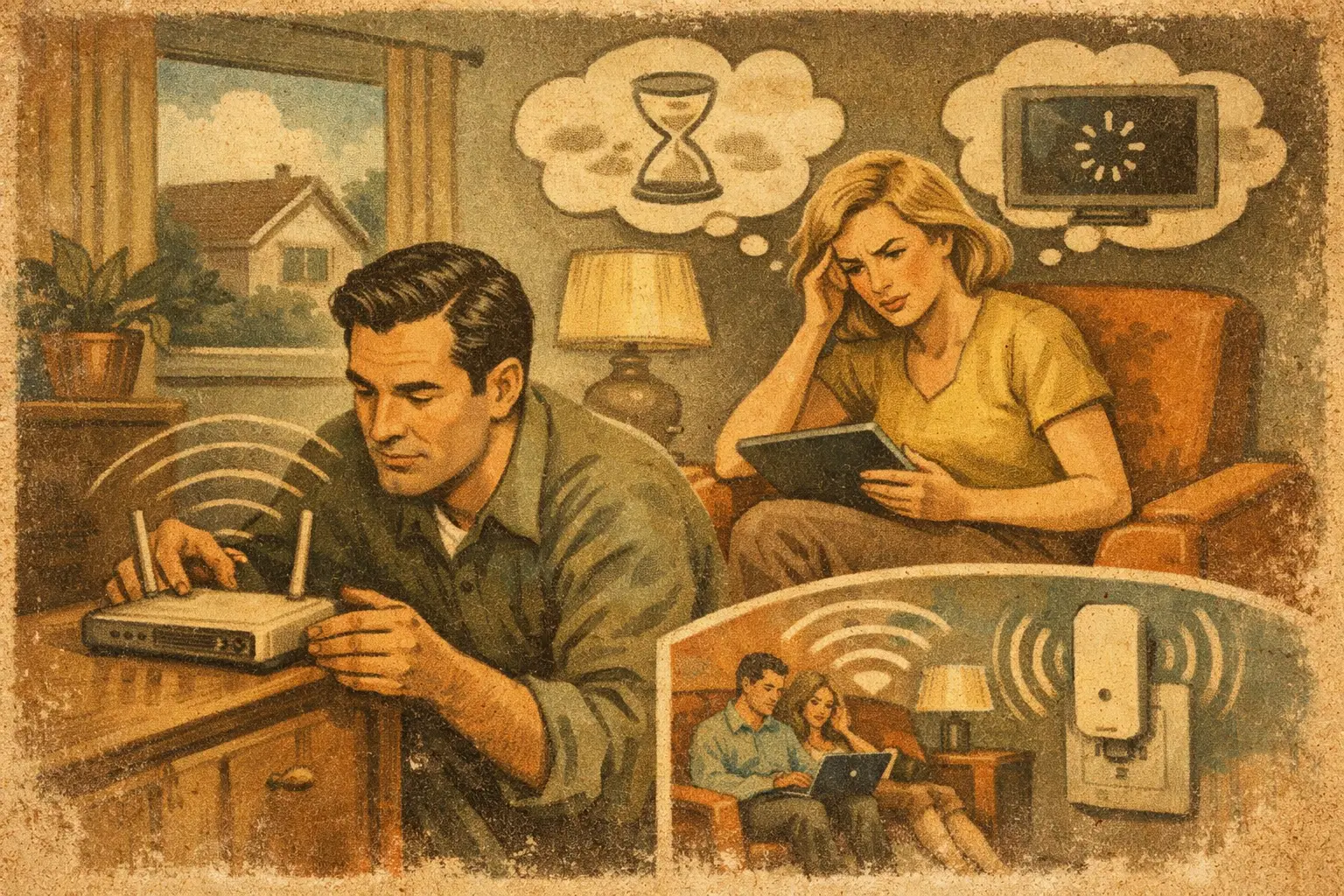
A video call freezes just as you need to speak. The smart TV buffers during movie night. Your phone works fine in the kitchen but drops its connection in the bedroom. If you are wondering how to improve home wifi, the answer is often simpler than buying the most expensive router on the shelf.
Most Wi-Fi trouble comes down to where the equipment sits, how many devices are competing for space, and whether the equipment is still suited to your home. A few practical changes can make a noticeable difference, without turning your living room into a tech project.
Start by finding out where the problem begins
Before changing settings or buying anything, notice the pattern. Is the internet slow everywhere, or only in one or two rooms? Does it happen at certain times of day? Is one device affected while others work normally?
If every device is slow, even when you are sitting near the router, the issue may be with your internet service, modem, or router. Restarting the modem and router can help. Unplug both devices, wait about 60 seconds, plug the modem back in first, and give it time to fully reconnect. Then plug in the router and wait a few more minutes.
If the connection is strong near the router but weak farther away, you are dealing with a Wi-Fi coverage problem. That is good news in a way, because placement or an added Wi-Fi device may solve it.
It also helps to test with more than one device. A slow laptop may need an update, have too many programs running, or have a weak wireless adapter. If your phone, tablet, and laptop all struggle in the same room, focus on the home Wi-Fi network rather than one device.
Put the router where it can do its job
Your router sends a wireless signal through the air. Walls, floors, metal, water, and large appliances can weaken that signal. A router tucked into a basement utility room, behind a television, or inside a closed cabinet has to work much harder than one placed out in the open.
For many homes, the best location is as close to the center of the home as practical, raised off the floor, and in an open area. A main-floor shelf or table is often better than a corner of the basement. If your modem connection enters the house in an inconvenient location, you may still be able to run an Ethernet cable to place the router somewhere better.
Keep the router away from cordless-phone bases, baby monitors, microwaves, large speakers, fish tanks, and dense clusters of electronics when possible. You do not need a perfectly empty room, but giving the router some breathing room can help.
If the router has external antennas, try positioning one vertically and one horizontally. Different devices hold their antennas in different directions, so this simple adjustment can improve reception.
Do not hide the router because it looks untidy
Many people hide networking equipment for a cleaner-looking room. That is understandable, but a decorative basket, metal cabinet, or crowded TV stand can block the signal. If appearance matters, look for a neat open shelf or use a short cable to move the router into a better spot. A stronger signal is worth more than a router that disappears completely.
Choose the right Wi-Fi band for each device
Many modern routers provide two or three Wi-Fi bands. You may see network names that include 2.4 GHz, 5 GHz, or 6 GHz. They are not all the same.
The 2.4 GHz band reaches farther and travels through walls better, but it is slower and more likely to face interference from nearby networks and household devices. It is often a sensible choice for smart plugs, printers, doorbells, and devices located far from the router.
The 5 GHz band is usually faster and less crowded, but its range is shorter. It is a good choice for laptops, phones, tablets, streaming devices, and game consoles that are reasonably close to the router. The newer 6 GHz band can offer excellent performance for compatible newer devices, but its range is shorter still.
Some routers automatically choose the best band for each device. This can work well. If a device keeps connecting to a slower band when it is close to the router, separate network names can give you more control. The right choice depends on your home and devices, so there is no need to change settings that are already working well.
Update the equipment before replacing it
A router does not need attention every week, but it should receive firmware updates. These updates can fix performance problems and close security gaps. Many newer routers update automatically, while others need you to sign in through an app or settings page.
Use a strong, unique Wi-Fi password and make sure your router's administrator password has been changed from the factory default. This protects your network from unwanted visitors who could use your connection or access devices on it.
If your router is more than five or six years old, replacement may be worthwhile, especially if your household has added smart TVs, cameras, tablets, gaming systems, and work computers over time. Older routers can still connect devices, but they may struggle when many people are streaming, working, and making video calls at once.
When shopping, do not focus only on the largest speed number on the box. Look for a router designed for the size and layout of your home, the number of devices you use, and your internet plan. A large, multi-level home often benefits more from a mesh Wi-Fi system than from one powerful router placed at one end of the house.
How to improve home WiFi in hard-to-reach rooms
A mesh system uses a main router and one or more smaller units, often called nodes. The units work together to spread Wi-Fi more evenly through the home. They can be a helpful option for long houses, homes with multiple floors, or rooms separated by thick walls.
Placement matters here too. Put an extra mesh unit between the main router and the weak area, not inside the weakest area itself. The added unit needs a strong enough connection to pass good Wi-Fi along. If it is placed too far away, it simply repeats a weak signal.
A Wi-Fi extender can be less expensive and may help with a single small dead zone. The trade-off is that extenders can reduce speed and sometimes create a separate network name that devices do not switch between gracefully. For a small apartment or one troublesome room, an extender may be enough. For a larger home with ongoing coverage problems, mesh is usually the more comfortable long-term solution.
For a stationary device such as a desktop computer, TV, or game console, a wired Ethernet connection is often the most dependable answer. It is not always practical, but a cable avoids wireless interference completely. This can make a real difference for home offices and entertainment setups.
Give busy Wi-Fi a little breathing room
A home network can become crowded without anyone noticing. Automatic cloud backups, security cameras, game downloads, software updates, and streaming services may all be active at the same time.
If video calls or online meetings are choppy, pause large downloads and backups until later. Check whether a game console is updating in the background. If your router offers device prioritization or quality-of-service settings, you may be able to give work calls or a home office computer priority during busy hours.
Guest Wi-Fi is useful when visitors come over. It gives guests internet access without putting their phones and laptops on the same network as your printer, smart home devices, and personal computers. Turning off old devices you no longer use can also reduce clutter in your router's device list and make troubleshooting easier.
Know when the internet plan is the limiting factor
Better Wi-Fi cannot create internet speed that your plan does not provide. If your connection slows down when several people stream video, work from home, or attend online classes, check the speed you are paying for and compare it with what you actually need.
Still, more speed is not always the solution. If you have a fast plan but weak coverage in the bedroom, a new plan will not fix the distance between your router and that room. Test close to the router first. Good performance nearby and poor performance far away points to Wi-Fi coverage, not your internet plan.
Get help without the confusing jargon
Home Wi-Fi can involve the internet provider, modem, router, phones, printers, TVs, and smart devices. It is easy to feel unsure about which piece is causing the trouble. No question is silly, especially when the goal is simply to make your technology work reliably.
Eric the Tech can help set up, reposition, secure, and troubleshoot home Wi-Fi while explaining what is being changed in plain language. Whether the fix is a better router location, a mesh system, or a setting that was overlooked, you deserve a connection that lets you work, talk, watch, and relax without constantly wondering what went wrong.
Start with the simplest change: move the router into the open, restart the equipment, and test the rooms that matter most. One small improvement can make the whole home feel easier to use.