
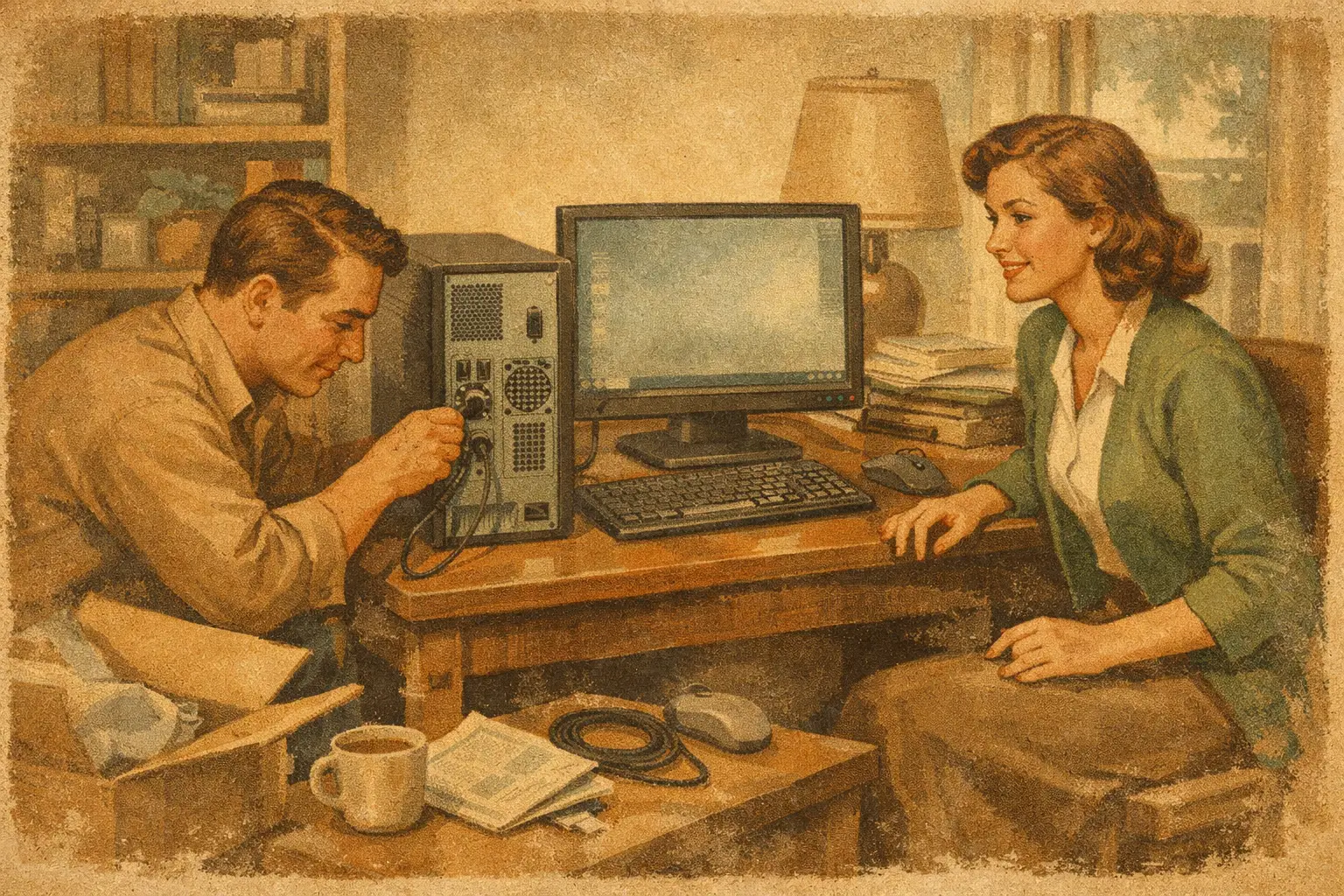
A new computer should feel exciting, not like a box full of decisions. If you need help setting up a new computer, the goal is not simply to get it turned on. It is to make sure it is safe, connected to the things you use every day, and comfortable enough that you can sit down tomorrow and know where everything is.
A rushed setup can create trouble later: missing photos, forgotten passwords, confusing duplicate files, printer problems, or a new computer that still feels unfamiliar weeks after it arrives. Taking a little time at the beginning saves frustration and helps your computer work the way you need it to.
Start with the right setup space
Before you plug anything in, choose a stable, comfortable place for the computer. A desktop needs room for airflow around the tower or monitor. A laptop needs a flat surface, a nearby outlet, and enough light to see the keyboard without glare on the screen.
Keep the original box, receipt, and any paperwork until you know the computer is working properly. If you are moving from an older computer, place it nearby for now. You may need it to find a password, copy a file, or check how an old program was set up.
For a desktop, connect the monitor, keyboard, mouse, and power cable before turning it on. Make sure the monitor is plugged into the correct port. If the screen stays blank, it is often a simple cable or input-setting issue, not a serious problem.
Create an account you can manage
During the first startup, your computer will ask you to create or sign into an account. On a Windows computer, that may be a Microsoft account. On a Mac, it will be an Apple Account. These accounts can be useful because they help with app downloads, device recovery, cloud storage, and syncing settings.
Use an email address you check regularly, and write down the account information in a safe place. A password manager is often the easiest long-term choice, but a private written record can be a good starting point if it is stored securely. What matters most is that you can recover the account yourself later.
Choose a strong, unique password rather than reusing one from email or banking. Turn on two-factor authentication if it is offered. It adds one extra step when signing in, but it can prevent a great deal of trouble if someone gets hold of your password.
Connect safely to your home Wi-Fi
Your computer needs an internet connection to finish activation, install updates, and protect itself. Select your home Wi-Fi network and enter the password carefully. If you are unsure which network is yours, look for the network name on your router or ask the person who set up your internet service.
Avoid using an open public network for the first setup if you can. At home, a password-protected Wi-Fi connection is the better choice. If your connection drops repeatedly or the computer cannot see the network, the problem may be the router location, Wi-Fi signal, or an incorrect password - not necessarily the new computer.
Once connected, check that the date, time zone, and region are correct. Small settings like these affect video calls, calendar appointments, and security updates more than people expect.
Install updates before moving your files
A brand-new computer is not always fully up to date. The manufacturer may have packaged it weeks or months before it reached you. Let the operating system check for updates, then install them and restart when asked.
This step can take some time, especially on the first day. It is tempting to skip it and start browsing right away, but updates often fix security issues and improve compatibility with printers, cameras, and software. Keep the computer plugged into power during this process, particularly if it is a laptop.
You may also see optional trial programs or offers for extra security software. Read these screens carefully. New computers sometimes come with temporary subscriptions that later begin charging automatically. You do not need several antivirus programs running at once. Built-in protection is enough for many home users when it is kept updated and paired with cautious browsing.
Move your files with a plan
Before copying everything from an older computer, decide what you actually need. Family photos, important documents, email contacts, tax records, and personal project files are usually the priority. Old downloads, duplicate pictures, and software you no longer use can often stay behind.
There are several ways to transfer files. Cloud storage can work well for documents and photos if your internet connection is reliable and you have enough storage space. An external drive may be faster for a large photo library. Direct computer-to-computer transfer can also work, but it depends on the devices involved.
The best method depends on how much data you have and how organized the old computer is. A few folders may transfer easily in an afternoon. Years of photos, files, and multiple email accounts deserve a more careful approach.
Do not erase or give away the old computer until you have opened key files on the new one and confirmed that your backup is complete. It is wise to keep the old device untouched for a few weeks. That gives you time to notice anything missing without panic.
Set up backup before you need it
A new computer is the ideal time to set up a backup routine. Computers can fail, be damaged, or become infected. A backup protects the files that cannot be replaced.
For most households, a combination works best: cloud storage for the files you want available across devices, plus an external backup drive for a separate copy. Cloud services are convenient, but they are not always a full backup of everything on the computer. An external drive gives you another layer of protection.
Make sure you understand what is being backed up. Photos stored in a Pictures folder may be included, while files saved somewhere unusual may not be. Check the backup once it is running. Seeing your files in the backup is much more reassuring than assuming they are there.
Add the everyday tools you actually use
Now set up the programs and services that make the computer useful to you. That may include your web browser, email, video calling app, printer software, photo program, and office documents. Download apps only from trusted sources, such as the official app store or the company that makes the software.
Sign into email and test sending a message. Make one video call to check the camera, microphone, and speakers. If you use a printer, print a simple page before you urgently need boarding passes, school forms, or paperwork.
You do not need to install every app you used years ago. Start with the essentials and add things as you need them. A simpler computer is usually easier to maintain and less confusing to use.
Make the screen and settings comfortable
A computer should adapt to you, not the other way around. Increase text size if words look too small. Adjust screen brightness and contrast. Set the mouse pointer speed, turn on captions if they help, and choose a desktop background that makes icons easy to see.
It also helps to organize the desktop from the beginning. Keep only a few useful shortcuts there, and use clear folder names for documents, photos, and downloads. Small habits like these make it easier to find things later.
If more than one person uses the computer, create separate user accounts. This keeps files, browser history, and settings more private and makes accidental changes less likely.
Learn the basics while someone can help
The most valuable part of a new computer setup is often not technical. It is having someone show you where your files are saved, how to find downloaded documents, how to restart the computer properly, and how to spot a suspicious pop-up or email.
No question is silly. A patient setup appointment can include writing down simple instructions in your own words, testing your printer and video calls, and practicing the tasks you use most. Eric the Tech can provide friendly in-home or remote support so the computer is not just configured, but understandable.
A new computer does not have to become another device you are afraid to touch. Set it up carefully, keep a backup, and give yourself permission to learn one step at a time. Confidence grows every time you solve a small task on your own.