
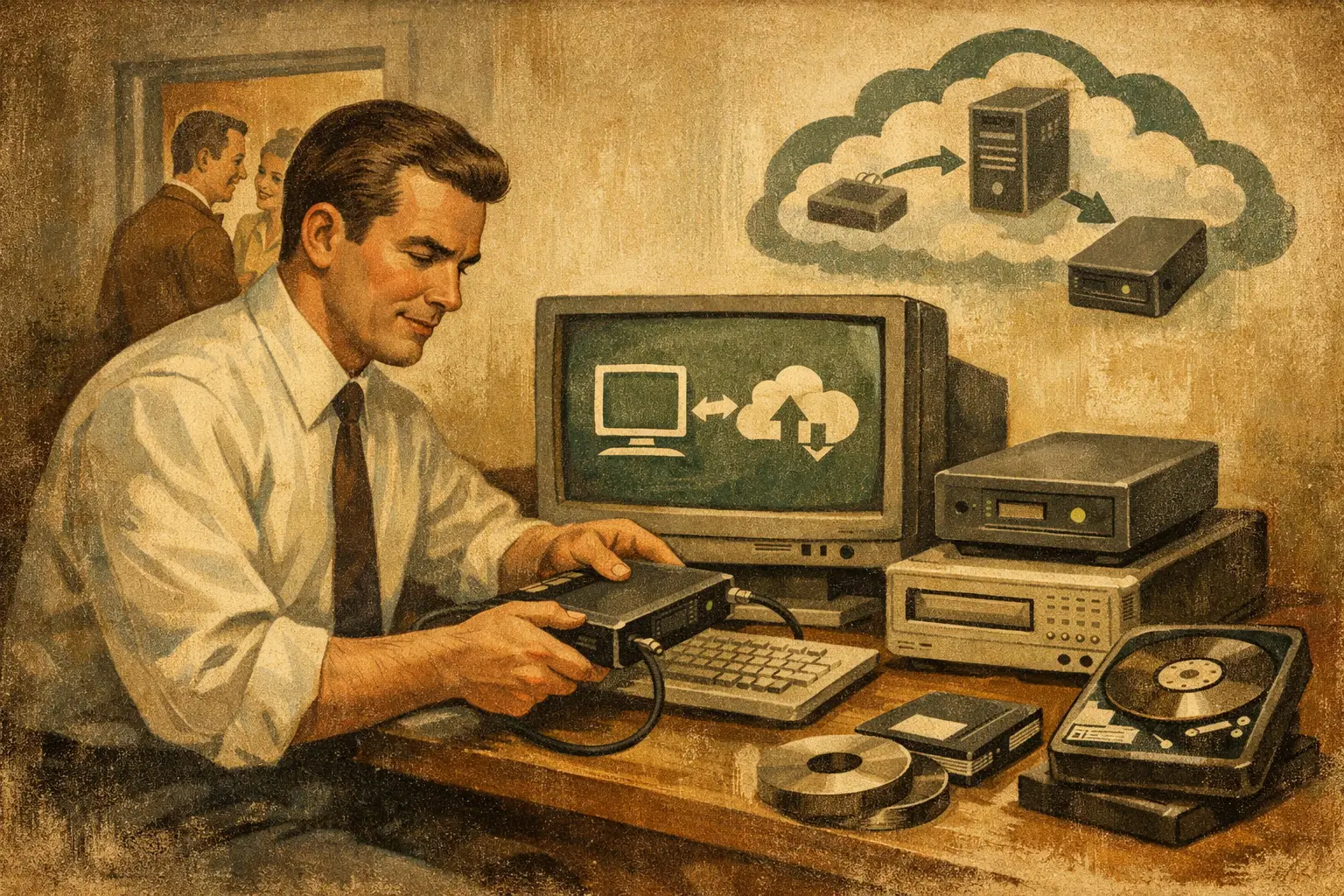
A spilled drink, a failed hard drive, a stolen laptop, or one wrong click can put years of photos and important documents at risk. A computer backup setup service gives you a clear, practical plan for keeping what matters safe, without asking you to become your own IT department.
For many people, backup is something they mean to deal with later. Then a computer starts acting strangely, a family member cannot find their tax files, or a phone full of photos runs out of space. The stressful part is not only losing the files. It is not knowing whether a copy exists, where it is stored, or how to get it back.
A good backup setup changes that. It creates automatic protection, explains what is being saved, and makes sure you know what to do if your computer ever needs to be replaced or repaired.
What a Computer Backup Setup Service Does
Backup is simply making a second copy of your files somewhere safe. That may sound straightforward, but a useful setup needs a few decisions made correctly. Which files should be included? Should copies be stored on an external drive, in cloud storage, or both? How often should backups run? And how will you know they are actually working?
A computer backup setup service handles those details with you, in plain language. It starts by looking at how you use your computer. A retired couple saving family photos has different needs from a remote worker with client documents. A household with several laptops may need shared storage and clear folder organization. A small business may need a more structured plan for customer records, financial files, and day-to-day work.
The goal is not to add complicated software or create a system you are afraid to touch. The goal is to make copies happen regularly and make recovery possible when life gets messy.
The Files People Most Often Forget to Protect
Most people think first about photos, and they are right to do so. Those pictures may be impossible to replace. But the folders that cause the most trouble after a computer problem are often the ones people do not think about until they are gone.
Personal documents can include tax returns, insurance paperwork, scanned records, school assignments, resumes, and letters. Email attachments may contain receipts or health information that never made it into a proper folder. Browser bookmarks, password vaults, and software settings can also be valuable, especially when a new computer needs to feel familiar quickly.
For a home office or small business, the list can be longer. It may include invoices, spreadsheets, accounting data, project files, customer documents, and shared folders. Not every file needs the same level of protection, but the important ones should not depend on a single computer staying healthy forever.
During setup, it helps to identify where your files really live. Many people save items to the Desktop because it is easy to see. Others have photos spread across a phone, laptop, old external drive, and cloud account. Finding those locations is a big part of creating a backup plan that works in real life.
External Drive, Cloud Storage, or Both?
There is no one right answer for every household. An external drive is a physical device that plugs into your computer and stores a copy of your files. It can be fast, private, and useful when restoring a large number of files. It is also a good option for people who want a copy close at hand.
The trade-off is that an external drive can be lost, damaged, or stolen along with the computer if it stays in the same place all the time. It also needs to be connected often enough for backups to run. A drive tucked in a drawer for two years is not much help if the newest files were never copied to it.
Cloud backup stores encrypted copies online through a backup provider or cloud storage service. This can protect files even if there is a fire, theft, or major hardware failure at home. It is especially convenient for laptops that travel and for families who want access to certain files from more than one device.
Cloud services depend on internet access and available storage space. Restoring a large photo collection can take time, particularly with a slower connection. Some services also sync files rather than truly back them up. Syncing is handy because changes appear on multiple devices, but it can copy mistakes too. If a file is deleted on one synced device, it may disappear everywhere.
For many people, the safest approach is both: one backup on an external drive and another copy stored away from home. This is often called the 3-2-1 rule: keep three copies of your data, on two different types of storage, with one copy stored elsewhere. You do not need to memorize the name to benefit from the idea. The simple point is not to put all your trust in one device or one account.
A Backup Plan Should Be Easy to Live With
The best backup schedule is the one that matches how often your files change. If you use your computer every day for work, automatic daily backup makes sense. If you mostly use it for email and occasional documents, weekly may be enough. Photos from a phone may need their own routine, especially if they are not automatically saving to a cloud photo account.
Automatic backups remove the need to remember another chore. Still, automatic does not mean invisible forever. A backup drive can become disconnected. A cloud subscription can expire. A computer may show a warning that gets dismissed and forgotten.
That is why a good setup includes a simple check-in routine. Once a month or every few months, open the backup and confirm that recent files are there. You do not have to inspect every folder. Look for a new document or a recent photo and make sure it can be found. This small habit can prevent a very unpleasant surprise later.
It also helps to label external drives clearly. A label such as “Family Photos Backup - Updated Automatically” is more useful than leaving a mystery drive in a desk drawer. If another family member needs to help, they should be able to understand what it is for.
Recovery Is the Part That Matters Most
A backup is only useful if you can restore files from it. That may mean recovering one deleted document, moving photos to a new computer, or restoring a whole system after a hard drive fails.
Before calling a computer beyond repair, it is worth checking what can be recovered. In some cases, files are still available even when the computer will not start normally. In other cases, a recent backup can make replacing the computer far less upsetting. Instead of beginning from scratch, you can bring back your documents, photos, browser favorites, and other personal items.
Recovery is also where plain-language help makes a difference. You should not be handed a drive and told, “Your data is on there somewhere.” You deserve to know where your files are, how to find them, and what steps to take if something goes wrong again.
When It Is Time for Help
If you have several old computers, a phone full of photos, an external drive you do not trust, or a cloud account with confusing folders, you are not behind. You are dealing with the same questions many households face.
A patient in-home or remote appointment can sort out what you have, remove duplicate confusion, set up automatic backups, and show you how to check them. Eric the Tech can also help when moving to a new computer, organizing photo libraries, setting up cloud storage, or creating a safer plan for a home office or small business.
No question is silly when the files involved are your memories, records, and work. A little time spent setting up backup can replace uncertainty with a calm answer to a hard question: “If this computer stopped working tomorrow, would my important files still be safe?”