
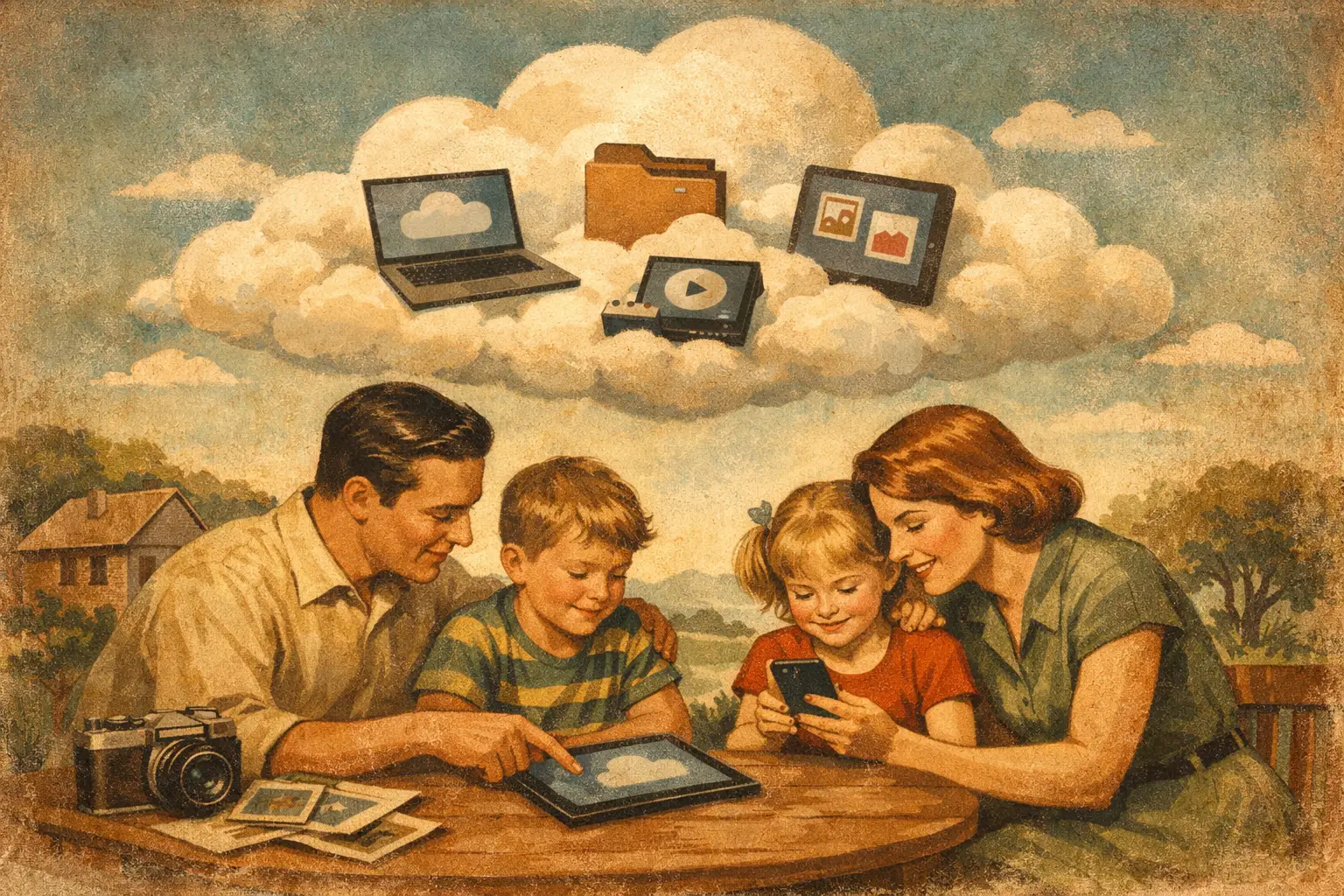
A family cloud account can be a relief when phones are full, photos are scattered across devices, and no one remembers where an important document was saved. The best cloud storage for families is not always the plan with the biggest number beside “GB” or “TB.” It is the one your household will actually understand, use, and be able to recover from if a phone, computer, or password goes missing.
For most homes, the right choice comes down to the devices you already use, how many people need storage, and whether you want one shared pool of space or private space for each person. A little planning now can prevent the familiar panic of a lost phone full of irreplaceable pictures.
What families need from cloud storage
A good family plan should make sharing simple without making everyone’s files visible to everyone else. Parents may want a shared place for household documents, vacation photos, and scanned records. Teenagers and adult children usually need their own private files and photos. The best services offer both: personal accounts under one family subscription, plus folders or albums that can be shared when needed.
Storage size matters, but it is not the whole story. Photos and videos use space quickly, especially if several family members record high-resolution video. A plan that seems generous at first can fill up faster than expected after a few holidays, school events, and pet videos.
Also look at how well a service works with your phones and computers. A household using mostly iPhones, iPads, and Macs will usually have an easier time with iCloud+. A home with Android phones, Chromebooks, and Gmail accounts may find Google One more natural. Microsoft 365 is often a strong fit for families who use Word, Excel, Outlook, and Windows PCs regularly.
The best cloud storage for families depends on your devices
Google One for mixed-device homes
Google One is often the easiest starting point for a family with a mix of Android phones, iPhones, Windows computers, and Chromebooks. It expands the storage shared by Google Photos, Google Drive, and Gmail. Family members keep their own Google accounts, so personal emails and files are not automatically open to the rest of the household.
Google Photos is especially appealing for families because it makes searching pictures less frustrating. You can search by a person, location, or broad subject, then create shared albums for relatives. Google Drive is useful for household paperwork, school documents, and files that need to work across different devices.
The trade-off is that Google storage can be used by photos, files, and email together. A family member with years of large videos or a very full Gmail inbox can consume more of the shared storage pool than expected. It is wise to check storage use every few months rather than waiting for the “storage full” warning.
iCloud+ for Apple households
For a family that mainly uses iPhones, iPads, and Macs, iCloud+ is usually the least confusing option. It is built into Apple devices and can automatically back up iPhones and iPads, sync photos, keep contacts current, and store files in iCloud Drive. Apple Family Sharing allows family members to share a storage plan while keeping their individual photos, messages, and files private unless they choose to share them.
The biggest advantage is convenience. When a new iPhone is set up, restoring from an iCloud backup can bring back apps, settings, photos, and messages with far less effort than trying to move everything manually.
Its limitation is that iCloud feels less comfortable in a mixed household. It works on Windows and through a web browser, but people who use Android or rely heavily on Windows may prefer a service that feels equally at home on every device. iCloud is also not the best choice if your main goal is easy collaboration on documents with people outside the Apple ecosystem.
Microsoft 365 Family for Windows and Office users
Microsoft 365 Family is worth a close look if your household uses Windows computers and Microsoft Office. The plan typically includes premium versions of Word, Excel, PowerPoint, and Outlook, along with OneDrive storage for each family member. Rather than everyone drawing from one shared storage bucket, each person generally receives their own large allotment of storage.
That individual storage can be a real benefit. One person’s photo collection does not automatically crowd out another person’s computer backup or schoolwork. OneDrive also integrates neatly with Windows, making it simple to protect files stored in common folders such as Documents and Pictures.
Microsoft 365 Family may be more than some homes need if no one uses Office apps. It can also take a little more setup to make sure each person is signed into the right Microsoft account and understands what is syncing. Once configured properly, though, it is a practical choice for a busy family with several PCs.
Dropbox Family for straightforward file sharing
Dropbox Family is a sensible option for families who care most about folders, file sharing, and simple access from many devices. It works well across Windows, Mac, iPhone, iPad, and Android, and it is popular with people who want to save documents and photos without being tied closely to one device brand.
Its shared family area can be useful for household records, travel plans, tax documents, or photos everyone should have. Dropbox is particularly good at keeping a familiar folder structure, which can feel more comfortable for people who think in terms of files and folders rather than photo libraries.
The downside is value. Dropbox may not include the extra apps or phone-backup features that make Google, Apple, or Microsoft plans attractive. It can be the right choice, but usually for a family that already likes Dropbox or has a clear need for its file-sharing approach.
Do not confuse syncing with a complete backup
This is where many families get caught out. Cloud syncing is helpful, but it is not always a full backup. If a file is deleted from a synced folder, that deletion may sync everywhere. If someone accidentally replaces a document, the changed version may become the one that appears on all devices.
Most major services offer deleted-file recovery and version history for a limited time, but those features are not a substitute for a separate backup plan. Important family photos, legal documents, and financial records deserve an additional copy on an external drive or another backup service. The simple goal is to avoid keeping the only copy of something precious in one place.
Phone backup also deserves a separate check. A photo service may save your pictures without saving text messages, app information, device settings, or other data needed to restore a phone after it is lost or damaged. Make sure each person’s phone backup is turned on and has enough available storage to finish.
Set up the account so it stays safe and usable
The best plan can still become stressful if nobody knows who owns the account or how to get back into it. Choose one responsible adult as the family organizer, but do not let that person’s account be the only point of failure. Keep recovery details current, and make sure another trusted adult knows where to find the recovery plan.
Use a unique password for every cloud account and turn on two-factor authentication. A password manager makes this much easier than writing passwords on paper or reusing the same one. Be careful with shared logins. Giving everyone the same password may feel simple, but it makes privacy, security, and future account recovery much harder.
Create a few clear shared spaces instead of one giant folder. For example, keep household documents separate from shared photos, and keep private financial records in a restricted folder. Use plain names that everyone can recognize. “Family Photos 2026” is much easier to find than “New Folder 4.”
Finally, test the setup. Upload a photo from one phone, check that it appears where expected, and try restoring a small deleted file. If you cannot explain how your cloud storage works on a calm afternoon, it will be much harder to use during a stressful lost-device situation.
A cloud plan should make family technology feel calmer, not add another confusing subscription to manage. Start with the devices already in your home, give everyone their own account, and protect the memories that cannot be replaced. If the setup feels overwhelming, patient one-on-one help can get it organized and leave you confident using it afterward.